
User-defined functions are custom functions you configure in a multi-step API (MSA) monitor or custom integration.
They process step variable values and return a transformed result through mapping, regular expression parsing, and other supported operations. In most cases, the input value is extracted from an API response body and stored in a step variable before the function runs. For details on MSA variables, see Multi-step API variables.
For example, a regular expression function can extract a filename, invoice-123.pdf, from a file path captured in a JSON response field. A mapping function can convert an API status, Ok, into an incident status, Healthy, for downstream processing.
Unlike Uptrends' built-in encoding or decoding functions, user-defined functions are specific to your monitoring scenario. Once defined, they can be reused throughout the monitor or integration without requiring custom scripts. For details on built-in encoding or decoding functions, see Encoding or decoding functions.
User-defined functions simplify data extraction and transformation, allowing you to consistently reuse the same logic wherever it is needed within the monitor or integration.
Types of user-defined functions
Hash
A hashing function is a one-way algorithm that accepts a message of any length as input and transforms it into a fixed-length value.
Use this function for securely comparing sensitive data such as passwords, authorization tokens, or digital signatures without exchanging the original values.
For HMAC-based algorithms (HMAC-SHA1, HMAC-SHA256, and HMAC-SHA512), specify a hash key. This is the shared secret combined with the input value to produce the hash. For MD5, SHA1, SHA256, and SHA512, a hash key is not required.
For details on hashing algorithms, see the Hashing and encoding knowledge base article.
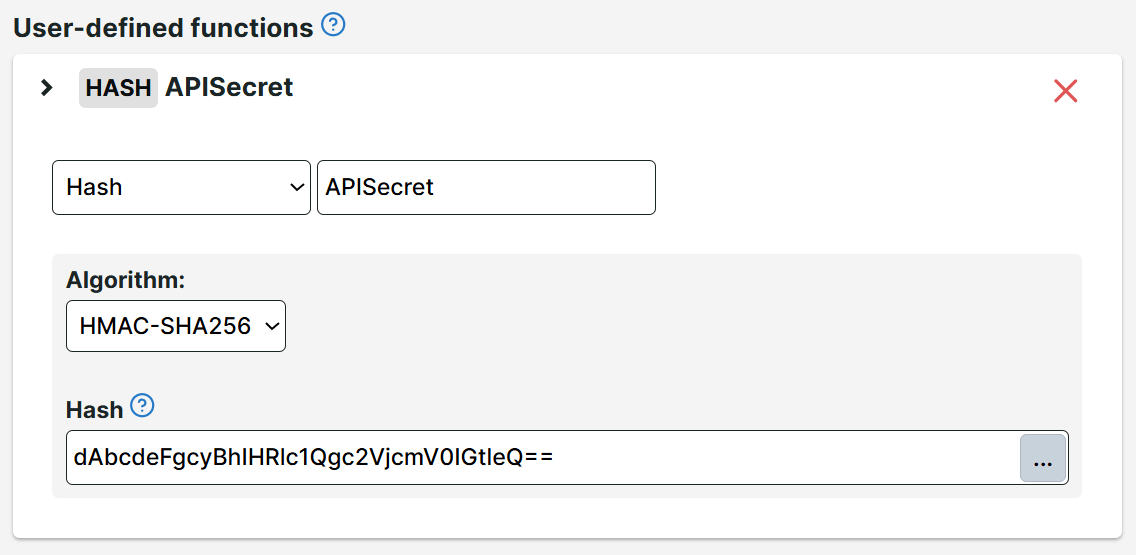
JSON Web Token (JWT) encode
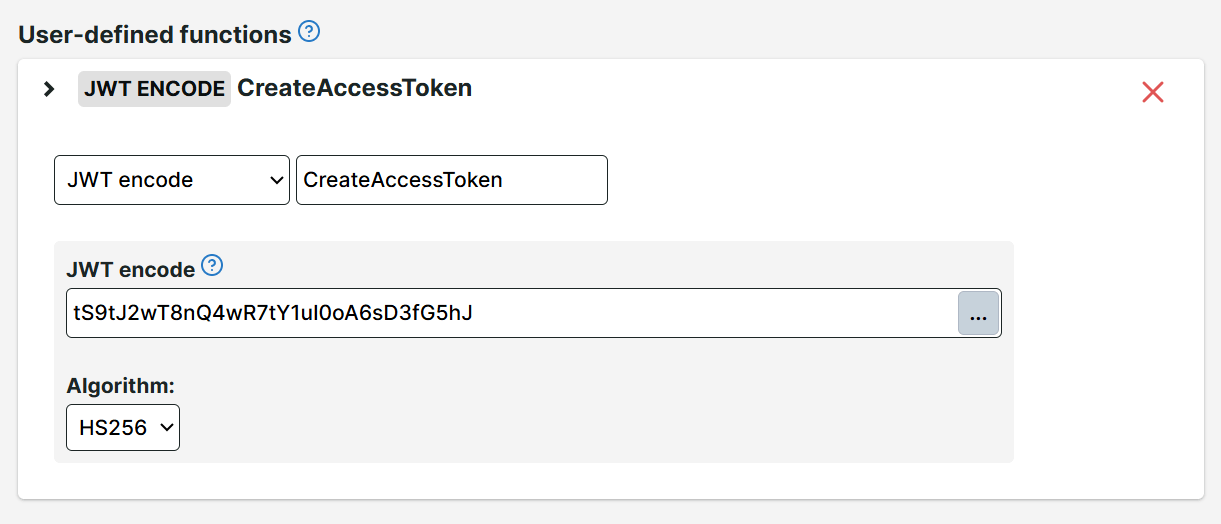
The JWT encode function creates a signed token using a signing key and algorithm (for example, HS256), which you can use for authentication in later API steps.
Specify the signing key when you define the function, then pass the JWT payload as a variable when you execute the function.
JSON Web Token (JWT) decode
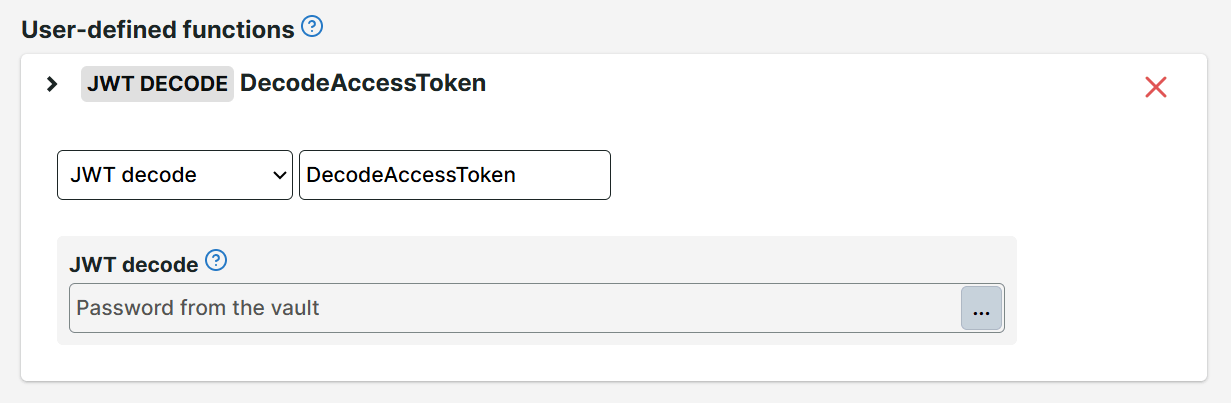
The JWT decode function reads a token from a variable, for example, an access_token value extracted from a JSON response body, and returns the decoded payload. Use the same signing key that was used to sign the token.
Mapping
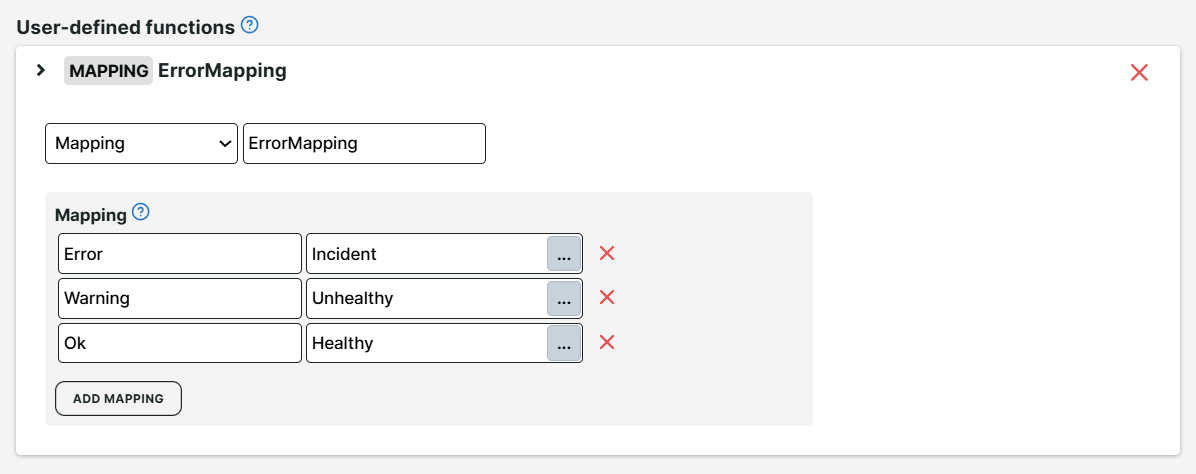
A mapping function replaces variable values with corresponding values. For example, if the /Status API endpoint returns values such as Error or Ok, and a subsequent step expects terms such as Incident or Healthy, use this function to map values to the correct equivalents.
Regular expression
Use a regular expression function to parse part of a string captured from an API response body. The typical workflow is to extract a value from the response, apply a RegEx pattern to isolate the part you need, and store the result in a step variable for use in a follow-up request.
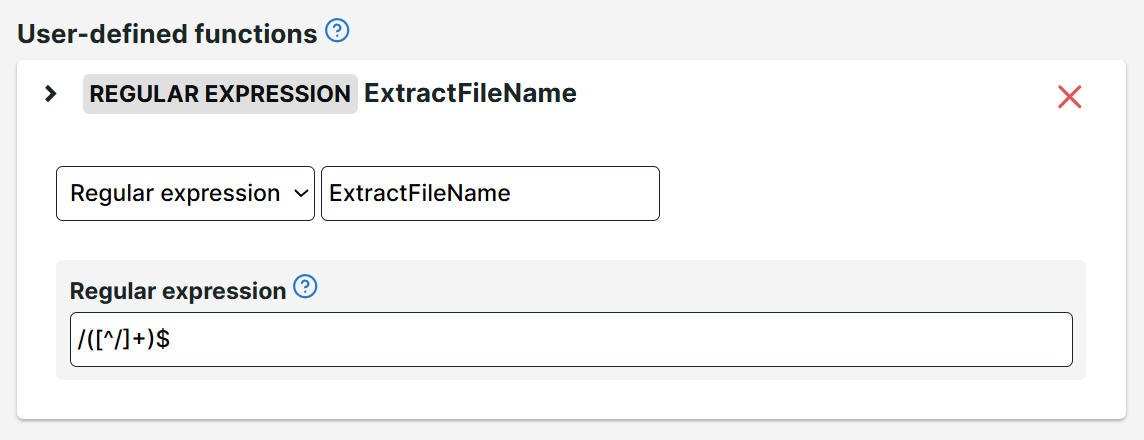
For example, if a JSON field returns a full file path such as /uploads/reports/invoice-123.pdf, first capture that value in a step variable. Then create a second step variable to apply your regular expression function to only extract the filename, invoice-123.pdf. Reference the resulting variable in later steps using {{variableName}}.
Create user-defined functions
To create a user-defined function, select the path based on your needs:
- Multi-step API (MSA) monitor — go to your MSA monitor > Steps tab > User-defined functions.
- Custom integrations — go to your custom integration > Customizations tab > User-defined functions.
Note
A user-defined function is specific to the multi-step API monitor or custom integration for which you set it up, and does not carry over to other monitors or integrations.
-
In the User-defined functions section, click Add function to create a new function.
-
Select the function type based on your needs:
- Hash
- JWT encode
- JWT decode
- Mapping
- Regular expression (optional)
-
Specify the function name. We recommend avoiding spaces in the function name.
-
Specify the following details:
- For mapping functions, specify the from values from the API variable to the corresponding to values.
- For regular expression functions, specify the RegEx pattern. The pattern is matched against a value from a step variable, typically one captured from the response body, and extracts the matched portion.
- For hashing functions, select the hash algorithm and specify the hash key value for HMAC-based algorithms.
- For JWT encode and decode functions, specify the signing key and algorithm.
For hash keys and JWT signing keys, you can use vault credentials instead of plain-text values. For more details on using vault credentials, see Uptrends Vault.
- Click Save to confirm the changes.
Once you configure the user-defined function, use the function with the variable.
Apply user-defined functions
To use your user-defined functions, wrap the variable inside the function:
{{userDefinedFunction({{variableReference}})}}
Example
This example uses a mapping function named ErrorMapping to translate status values from one API for use in a later step.
- The function maps
Error→Incident,Warning→Unhealthy, andOk→Healthy. - The API returns a JSON response with a
Statusfield containingError,Warning, orOk. - The next step sends this status to another API that expects
Incident,Unhealthy, orHealthyinstead.
To apply ErrorMapping and translate the status value automatically:
-
Create a variable to extract the
Statusfield from the response body. Name the variablestatusRaw. It stores values such asError,Warning, orOk. -
Click Add variable to add another variable.
-
Set the variable source from the dropdown to Execute function.
-
In the function expression, wrap the variable reference in the function:
{{ErrorMapping({{statusRaw}})}}
- The resulting value is
Incident,Unhealthy, orHealthy, depending on thestatusRawvalue. In the Variable name field, specify a name for the output value. For example,status.
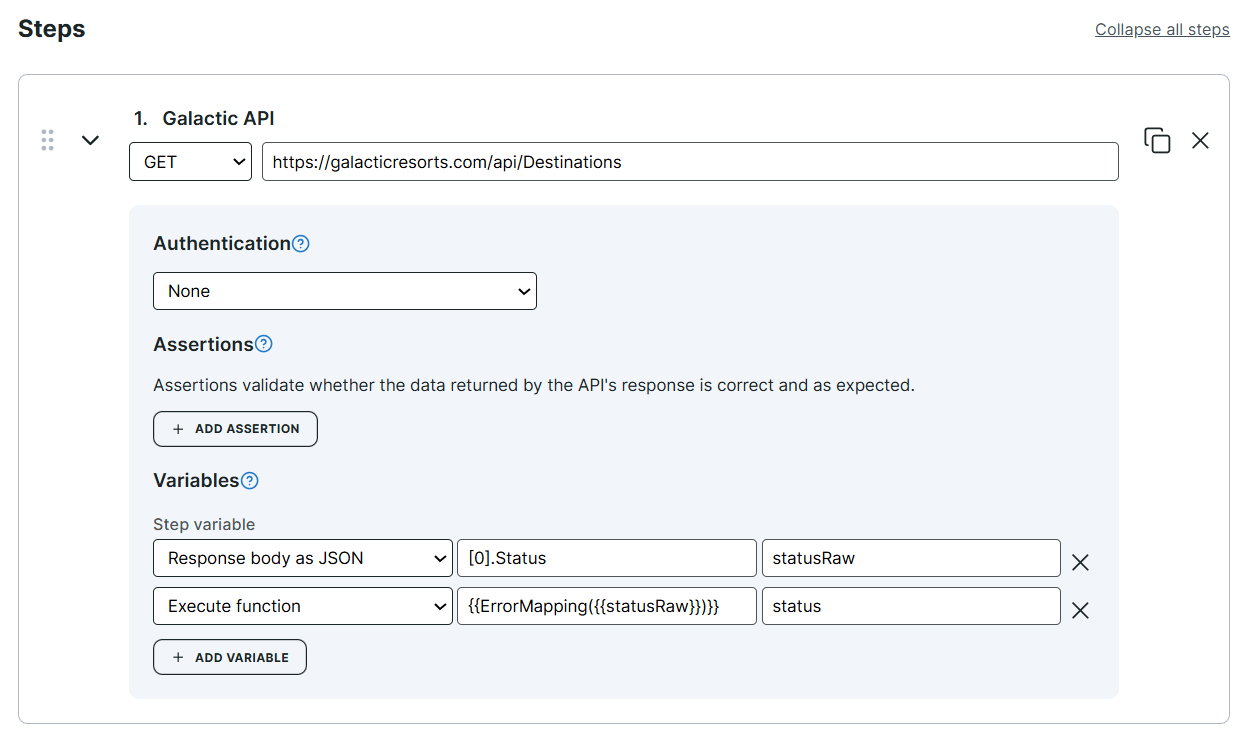
You can now reference the status variable in later steps using {{status}}.
Follow the same steps to apply other user-defined function types. Only the function definition fields and expression differ.