
Note
Uptrends Audit log is available in all subscription plans.
With all the updates and various activities happening in your Uptrends web application, it is difficult to manually keep track of what, where, when, and who made changes to your settings. In certain scenarios like this, it is helpful to maintain a history log for various reasons. For example, quickly recovering accidental changes, identifying the root cause of an issue, assessing permission rights, and other similar cases.
The Uptrends Audit log is a helpful tool that meets all your needs. This capability records all activities made in your Uptrends application while providing detailed information about who, when, where, and what specific updates were made in your account.
Manage Audit log
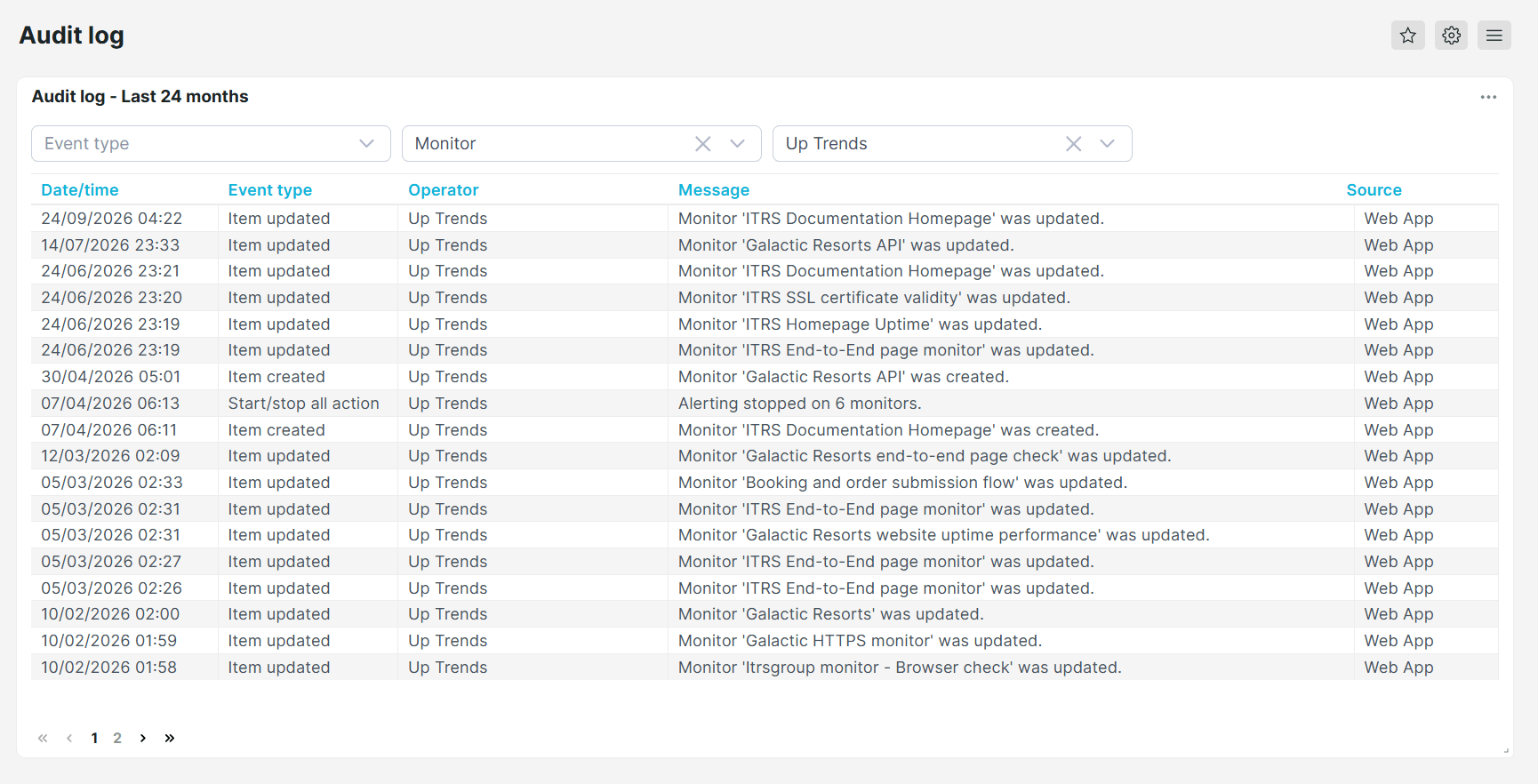
The Audit log dashboard lets you view, filter, and export log entries for your account. Open it from either the Account setup menu or the Admin menu.
View Audit logs
By default, the Audit log dashboard presents a tabular list of information with the most recent changes appearing on top, including columns such as:
- Date/time — shows the actual date and time when the update was made.
- Event type — specifies the type of change the user made, such as Logon action, Item updated, Membership change, and others.
- Operator — specifies the name of the operator who made the change.
- Message — specifies the description of which items are created, updated or deleted. For example, when you create a new operator, the message shows Operator ABC was created.
- Source — specifies the source of the change. If any update was done via the Uptrends web application itself, you can see Web App as the source. If changes are made via the API, you’ll see the API as the source.
Filter Audit logs
To easily narrow down specific activities made in your application, the Audit log allows you to filter entries by Event type, Item type, and Executed by.
- Event type — filter the type of change or action, including login access, permissions, and item updates. You can select categories such as Logon action, Membership change, Permission change, and Item created.
- Item type — filter specific item changes, such as updates to operators, operator groups, monitors, or integrations.
- Executed by — filter by the operator who performed the action.
Export Audit logs
Just as any Uptrends dashboard, the Audit log can also be exported to any PDF, Excel and HTML format. Check this knowledge base article to find the step-by-step process on how to export your Audit log dashboard data.
Once you’ve successfully exported your data, you can now see the same details as presented in the summary table of your Audit log dashboard. Only the Source column is omitted to simplify the view.
Audit log details
As the Audit log table provides an overview of the history of changes in your account, the Audit log details reveal more specific information about what changes exactly happened.
Simply click each audit log entry to show the Audit log details pop-up screen:
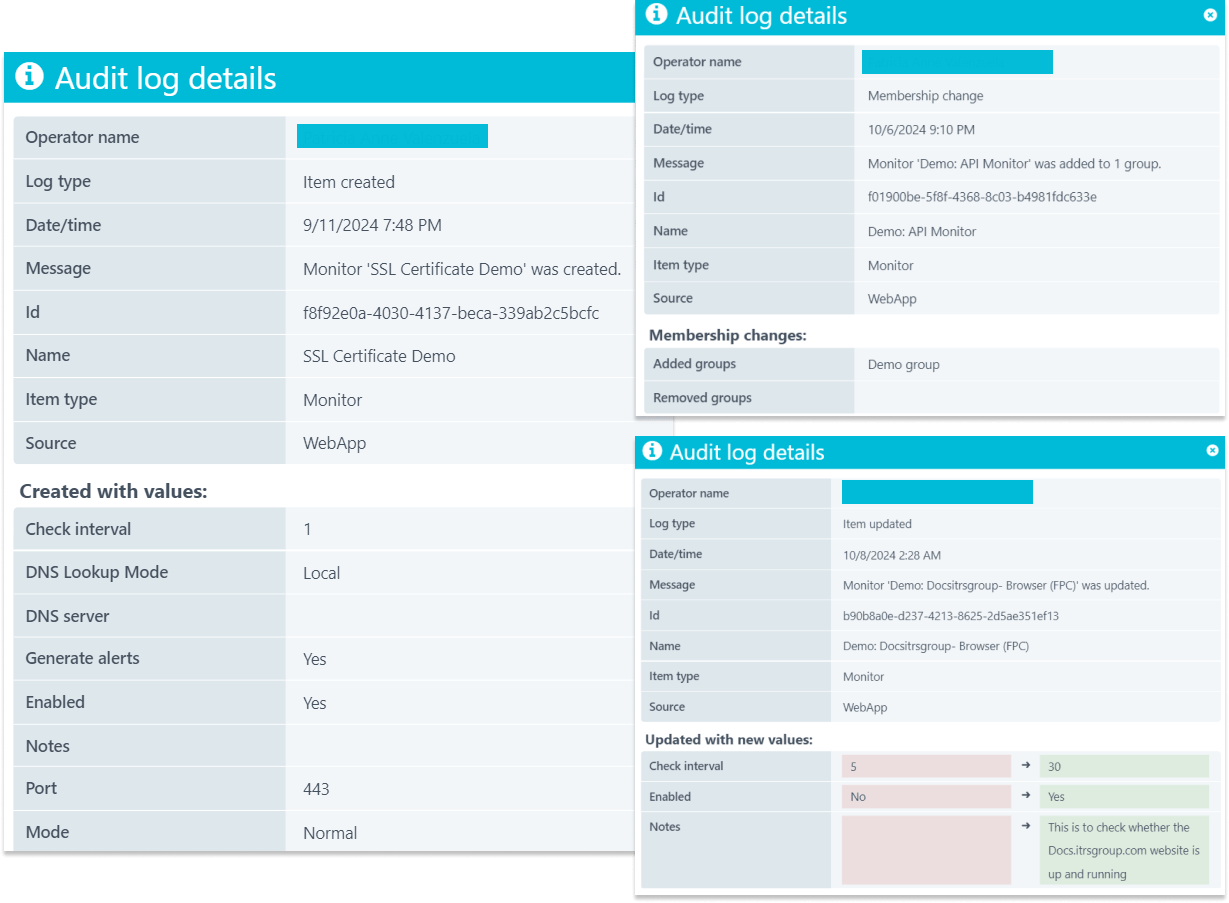
Generally speaking, this pop-up will show details similar to what was mentioned in the summary table found in the Audit log dashboard. Additional information such as the Audit log ID (a unique identifier of the Audit log entry), the Name of an Item type (for example, Monitor, Operator, Alert definition, and more), and specific information of which items were created, updated and deleted are also shown.
As illustrated, when an item is created, the Audit log details show the Created with values: section detailing the created item and its settings. Similarly, when you update any item, the Audit log details show the Updated with new values: section specifying the previous and the updated values. It’s important to note that the information displayed in the Audit log details vary depending on what updates you make and which items you’ve updated.
Audit log details for each Item type
This section contains the history of changes recorded by the Audit log for each Item type.
Dashboards
The Audit log records changes to Dashboards when you:
- Grant and revoke Sharing permissions for dashboards.
Alert definitions
The Audit log records changes to Alert definitions when you:
- Create a new alert definition.
- Rename and delete an existing alert definition.
- Activate and deactivate the alert definition’s status.
- Add, change, and remove settings from the alert definition’s scope of monitors and monitor groups and escalation levels.
- Grant and revoke permissions for alert definitions.
Integrations
The Audit log records changes to Integration when you:
- Create a new integration.
- Rename and delete an existing integration.
- Activate and deactivate the integration’s status.
- Add, change and remove predefined variables, and general settings from the integration.
- Grant and revoke permissions for integrations.
Monitors
The Audit log records changes to Monitors when you:
- Create a new monitor.
- Rename and delete an existing monitor.
- Activate and deactivate the monitor’s status.
- Add, update, and remove the monitor settings configured in the Main, Steps, Error conditions, Advanced, Checkpoints, Maintenance periods, and Member of tabs.
- Start and stop monitors and monitor alerts.
- Grant and revoke permissions for monitors.
Monitor groups
The Audit log records changes to Monitor groups when you:
- Create a new monitor group.
- Rename and delete an existing monitor group.
- Add, update, and remove monitor details and scope of monitors within the monitor group.
- Grant and revoke permissions for monitor groups.
Monitor result export
The Audit log records changes to a monitor result export when you:
- Create, update, enable, disable, or delete an OpenTelemetry export.
- Create, update, or delete a connection.
- Create, update, or delete a rule set.
Monitor templates
The Audit log records changes to Monitor templates when you:
- Create a new monitor template.
- Rename and delete an existing monitor template.
- Add, update, and remove configuration from the general settings, Checkpoints, and Maintenance periods tabs of the monitor template.
Operators
The Audit log records changes to Operators when you:
- Create a new operator.
- Rename and delete an existing operator.
- Add, update and remove configuration from the general settings, Off-duty schedules, and Member of tabs of operators.
- Update time zone settings.
- Send an invitation to an operator or an operator accepted your invitation.
- Grant and revoke permissions for operators.
The Audit log also records items related to operators by Event type, such as Logon action and Failed login attempt.
Operator groups
The Audit log records changes to Operator groups when you:
- Create a new operator group.
- Add or exclude members in an operator group.
- Edit the name of an operator group.
- Delete an existing operator group.
- Grant and revoke permissions for operator groups.
Private locations
The Audit log records changes to Private location when you:
- Create a new private location.
- Rename and delete an existing private location.
- Enable and disable checkpoints.
- Add, update, and remove the private location settings.
SCIM settings
The Audit log records changes to SCIM settings when you:
- Enable or disable SCIM settings, or switch to SCIM what-if mode.
- Enable or disable automatic invitation emails for SCIM-provisioned operators to set up their accounts.
- Create or update SCIM service account settings, including permissions and off-duty schedules. These changes are recorded under the Operator item type.
Note
SCIM provisioning activity for operators and operator groups is not recorded in the Audit log. This activity is recorded on the SCIM settings page.
SLA definitions
The Audit log records changes to SLA definition when you:
- Create a new SLA definition.
- Rename and delete an existing SLA definition.
- Add, update, and remove the SLA time schedule and exclusion period settings.
Vault
The Audit log records changes made from the Vault when you:
- Create, update and delete a vault item.
- Create, update and delete a vault section.
- Add, update, and remove vault items from a vault section.
- Grant and revoke permissions for vault sections.