
Imagine connecting your Uptrends account to the operations management system your organization uses. Feeding Uptrends alert data into your existing incident management processes creates a seamless integration of Uptrends' external monitoring into the day-to-day procedures your teams already use.
If our predefined integration types don’t include your DevOps software, you can use the custom integration option to build the integration yourself. The key to building a successful integration is knowing what kind of message the other system is expecting. The third party’s API documentation tells you which URL to use and which content to post to that URL. Often called webhook-based integrations, they let Uptrends hook into the other system by allowing direct calls into them. Uptrends can initiate a call to the integration as soon as a relevant alert appears.
This article covers setting up a custom integration, customizing message content and message types, testing your setup, and adding the integration to an alert definition.
Set up a custom integration
To set up a custom integration, follow these steps:
- Create a custom integration using one of the options below:
- Alerting > Integrations +.
- Configure > Alerting channels +.
- Save as — open an existing custom integration and click Save as to duplicate it. The copy allows you to reuse existing configurations instead of starting from scratch.
Note
You cannot duplicate built-in integrations (email, SMS, phone) or third-party integrations requiring a dedicated setup flow, such as Slack and PagerDuty.
-
Select Uptrends integration. Then, click Choose....
-
Provide an integration name.
-
(Optional) Customize your integration in the Customizations tab.
-
Click Save to confirm changes.
Specify the API URL
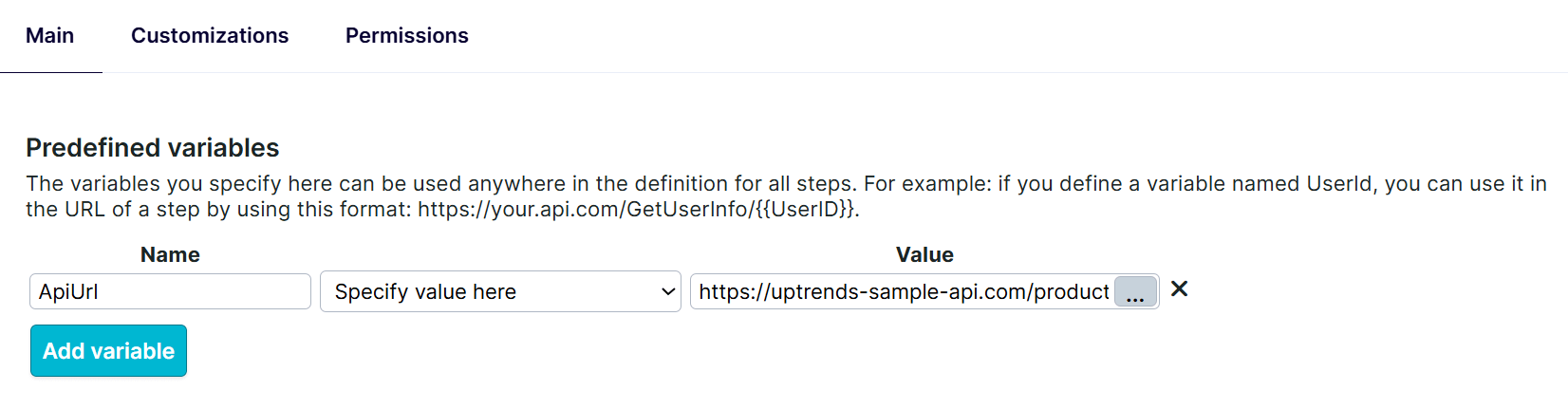
The ApiUrl is a predefined variable that holds the destination URL for the HTTP call.
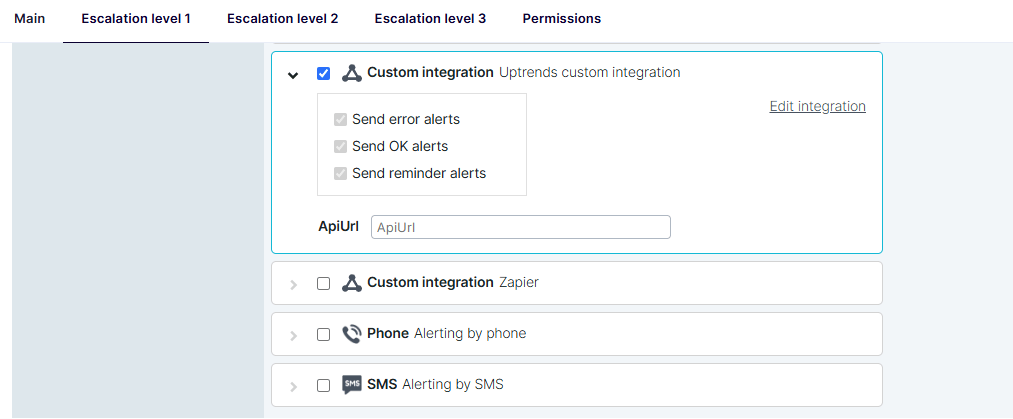
There are two options to specify the API URL:
- Specify value here — sets the
ApiUrlon the integration level. Every alert definition and escalation level that uses this integration gets the same URL. You may use the Uptrends Vault to store the API URL. For more details, see Uptrends Vault
- Specify value in escalation level — sets the
ApiUrlwhen you attach the integration to an escalation level in an alert definition. Each escalation level has its own URL field, so one integration can point to different endpoints in different alert definitions.
Customize integrations
In the Customizations tab, define what Uptrends sends when an alert fires.
Uptrends provides a predefined template that contains the available information from an alert. This template is a customizable, JSON-formatted message body found in Request body.
{
  "alert": {
    "alertGuid": "{{@alert.alertGuid}}",
    "type": "{{@alert.type}}",
    "description": "{{@JsonEncode({{@alert.description}})}}",
    "failureMessage": "{{@alert.failureMessage}}",
    ...
  }
}
The body contains the full range of alerting variables, for example, {{@alert.alertGuid}} or {{@alert.description}}. Uptrends replaces these placeholders with live alert data when the message is sent. Edit the template to remove fields, add your own data, or change the format.
For more details, see:
- Building the right message content — customize message content and use variables
- Message formatting — format outgoing messages correctly and avoid errors in the receiving application
- Alerting system variables — full list of available variables
Message types
Alerting messages come in different types. Uptrends makes the distinction between Error messages, Reminder messages, and Ok messages. By default, all these message types are created with the same setup. However, when setting up a custom integration or customizing an existing integration, you can create different sets of actions for each individual message type. For more information, see Message types.
Test custom integration
Once you create or modify a customized integration, test it before using it in production. You can send a test message from the integration editor without attaching the integration to an alert definition. For more information, see Test your custom integration.
Add an integration to the alert definition
An integration definition on its own does nothing. You need to attach it to one or more alert definition escalation levels to receive alerts through the integration.
To attach an integration definition to an escalation level:
- Go to the alert definitions page using one of the options below:
- Alerting > Alert definitions
- Configure > Alert escalations
- Open the alert definition you want to use.
- Click an Escalation level tab.
- Enable the checkboxes for your custom integration definitions.
- Click Save to confirm changes.
Your integration is now linked to the alert definition. When a monitor assigned to this alert definition triggers an alert and the escalation level conditions are met, Uptrends sends the configured message through the integration.
If you have any questions, please reach out to our Support team.