
Overview
By default, each operator signs in to Uptrends using an email address and password. To simplify access, you can configure Single Sign-on (SSO) to authenticate operators directly through your Identity Provider (IdP) instead of using Uptrends credentials.
Uptrends supports SSO through any SAML 2.0-compliant identity provider, such as:
- Azure Active Directory
- Active Directory Federation Services (ADFS)
- Okta
- OneLogin
- SecureAuth
- Duo Access Gateway
SSO lets users sign in to Uptrends using their organization’s identity provider instead of a separate Uptrends password. This allows admins to easily manage and revoke access centrally through the IdP.
How Uptrends SSO works
Your organization must use a third-party IdP to authenticate users when they sign in to Uptrends. The IdP verifies each operator’s identity using your organization’s credentials and policies, such as multi-factor authentication, and confirms authentication to Uptrends.
In this setup, Uptrends acts as the Service Provider (SP) and relies on your IdP to authenticate users. Depending on your configuration, operators can sign in through IdP-initiated or SP-initiated SSO. Many IdPs offer an app gallery or app hub where operators can access Uptrends alongside other SSO-enabled services.
How SSO users log in
Depending on your SSO preference, operators can log in to Uptrends in two ways:
- IdP-initiated SSO
- SP-initiated SSO
IdP-initiated SSO
Operators use an IdP-hosted portal, such as Okta or OneLogin, in the form of an app gallery to log into Uptrends or other SSO-enabled services. This method is called IdP-initiated because the login sequence is started on the identity provider’s side.
SP-initiated SSO
Operators start their login from the Uptrends web application, which redirects them to the IdP for authentication. In this setup, your IdP does not provide a centralized app gallery or portal.
For SP-initiated SSO,
contact our Support team to set up a dedicated subdomain, such as https://your-company.uptrends.com. Operators can then bookmark that URL or enter your organization name on the Uptrends login page.
Prerequisites
To enable SSO setup in Uptrends, the following prerequisites must be met:
-
Enable SSO option in your Uptrends account settings.
-
Define a new app in your IdP.
Uptrends provides SAML configuration data for your IdP, including the Single Sign-on URL and Audience URI/Entity ID. Your IdP uses the Single Sign-on URL as the SAML endpoint for sending authentication responses to Uptrends.
After you register the Uptrends web application in your IdP, the IdP provides its login URL and an X.509 certificate (public key). Uptrends uses the login URL to connect to your IdP and the certificate to verify that SAML responses are signed by your IdP.
- Each SSO user must exist in both your IdP and Uptrends.
Create an operator for each user in Uptrends. Uptrends identifies users by email address during SSO login, so the address must match in both systems.
SSO setup
To enable and configure SSO in your Uptrends account, see the Single Sign-on setup guide.
Manage login options for operators
Uptrends operators have two login options:
- Username and password login
- SSO login
In Account settings, you can set the default login behavior for all operators. Do not disable both, as that locks out all operators.
A common rollout approach is to keep username and password logins enabled, test SSO with a few operators, then disable username and password logins once everyone uses SSO.
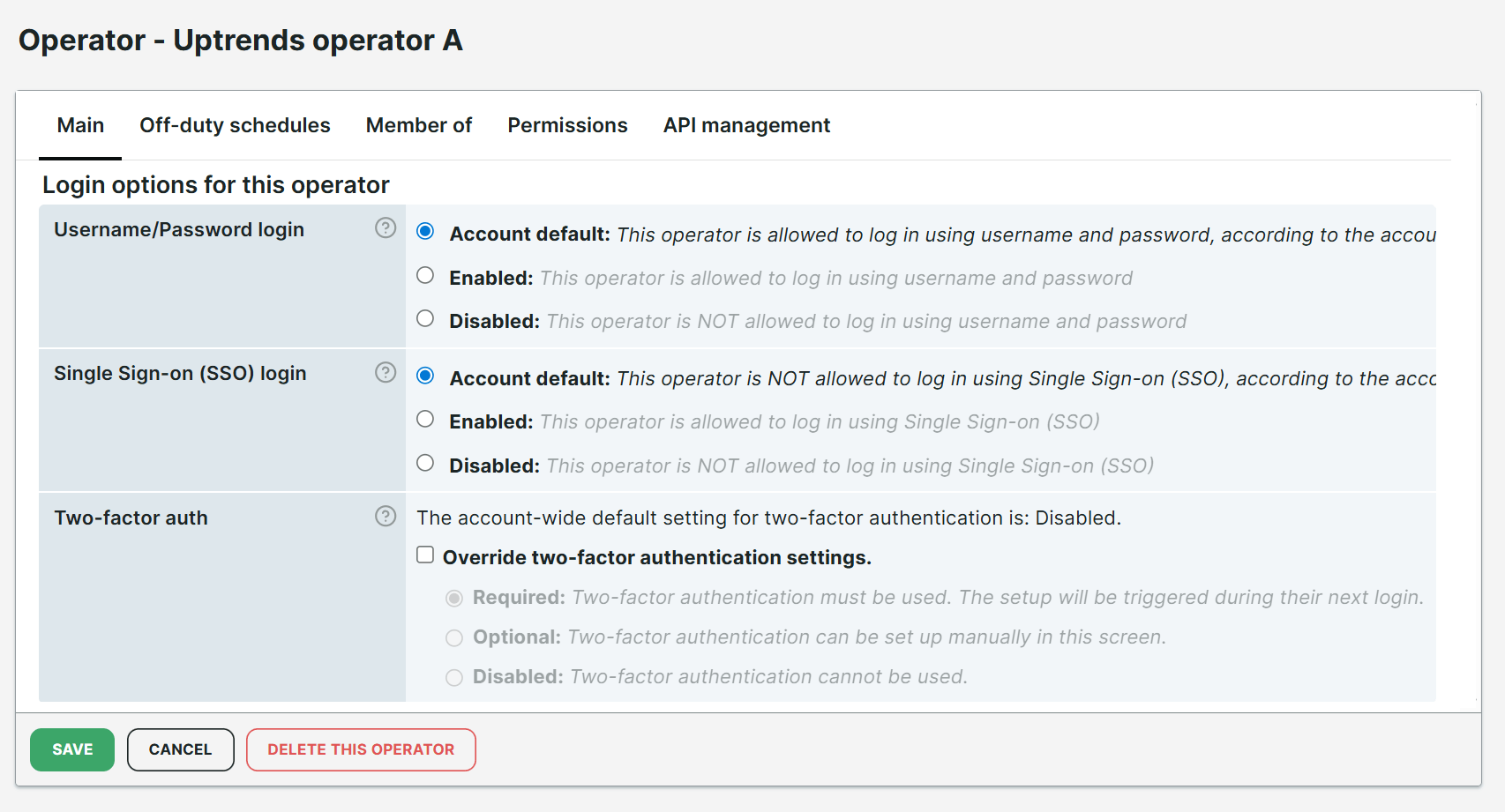
You can override these defaults per operator in Login options for this operator. Both login options use the account default initially. Override them when needed. For example, to let external operators sign in with a username and password while requiring SSO for all other operators.