
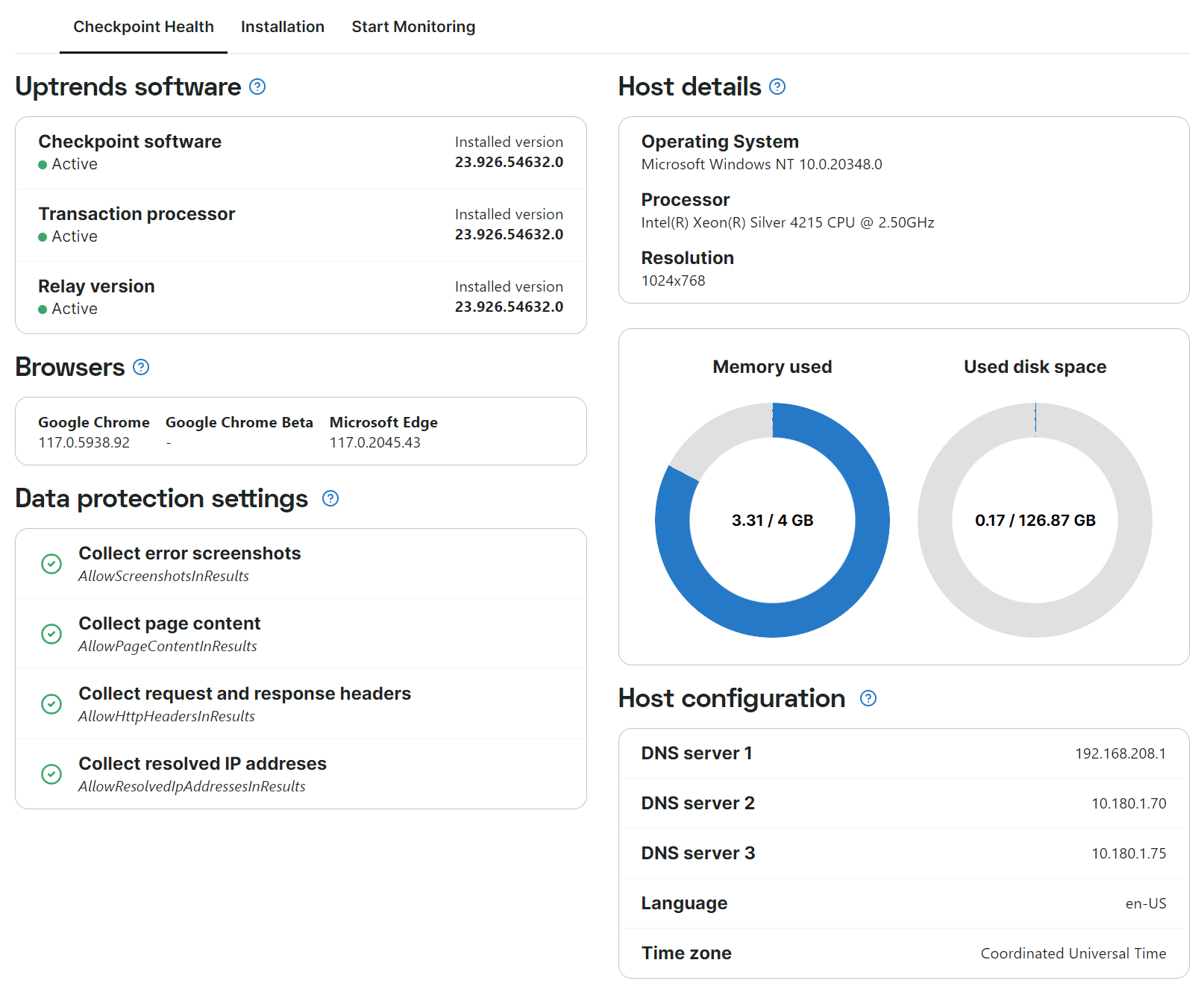
Your checkpoints in private locations can perform monitoring tasks only when they are operating properly. The Checkpoint Health tab displays your checkpoint’s status, installed software, and host metrics.
Access the Checkpoint Health tab
To view checkpoint health information:
- Go to Private locations.
- Click the checkpoint you want to view.
- Select the Checkpoint Health tab.
Checkpoint Health sections
The Checkpoint Health tab shows information on the installed software, browsers, host details, and data protection settings.
Uptrends software
This section shows whether the Uptrends software is correctly installed and if all required monitoring services are running. Each component under Uptrends software has a status of either active or inactive. All components must be active for the checkpoint to perform monitoring tasks.
Uptrends uses different software containers, each designed to perform specific functions or tasks:
- Checkpoint container — runs all non-browser-based checks.
- Transaction processor container — runs real browser checks such as full page checks or transaction monitors.
- Relay container — handles communication between the other containers and the Uptrends cloud services.
Uptrends releases container images with matching version numbers and only tests these combinations. Using non-matching versions together is not recommended.
Browsers
Private checkpoints must have browsers installed to perform real browser checks, such as browser or transaction monitors.
This section displays the installed browsers and their versions so you can compare them against the latest available versions. Uptrends provides container images with the most recent browser versions. Update your containers regularly when new versions become available.
Data protection settings
This section indicates whether data is enabled and displayed for the checkpoint. This is a read-only display, and you can only modify these settings in the Docker file.
A green check mark means data protection is disabled and data is visible. A red cross means data protection is enabled and data is hidden.
For more detailed information, refer to Private location data protection.
Host details
This section displays information about the host machine that runs your checkpoint and performs monitoring tasks. The virtual or physical machine hosting your checkpoint must be in good condition with sufficient resources available to perform monitoring effectively.
Review the following system information to identify potential performance bottlenecks:
- Operating system — Linux or Windows.
- Processor — the CPU model and specifications.
- Memory used — memory used for running checks and processing monitoring data.
- Used disk space — storage used for checkpoint operations, logs, and temporary files.
Host configuration
This section displays the configuration details of your private location’s host machine. Review these settings to ensure your checkpoint is configured correctly.
- DNS servers — the DNS servers used by the host to resolve domain names. Incorrect DNS settings can affect monitoring accuracy.
- Time zone — the time zone configured on the host. Correct time zone settings ensure accurate timestamp reporting.
- Language settings — the language and locale settings of the host operating system.