ITRS named a Visionary in the 2025 Gartner® Magic Quadrant™ for Digital Experience Monitoring.

What’s new

See the latest features and product updates in Uptrends
View the API changelog and reported issues in the Incident log.

Submit a feature request

UPDATE

APR 2024

#Permissions for monitor templates

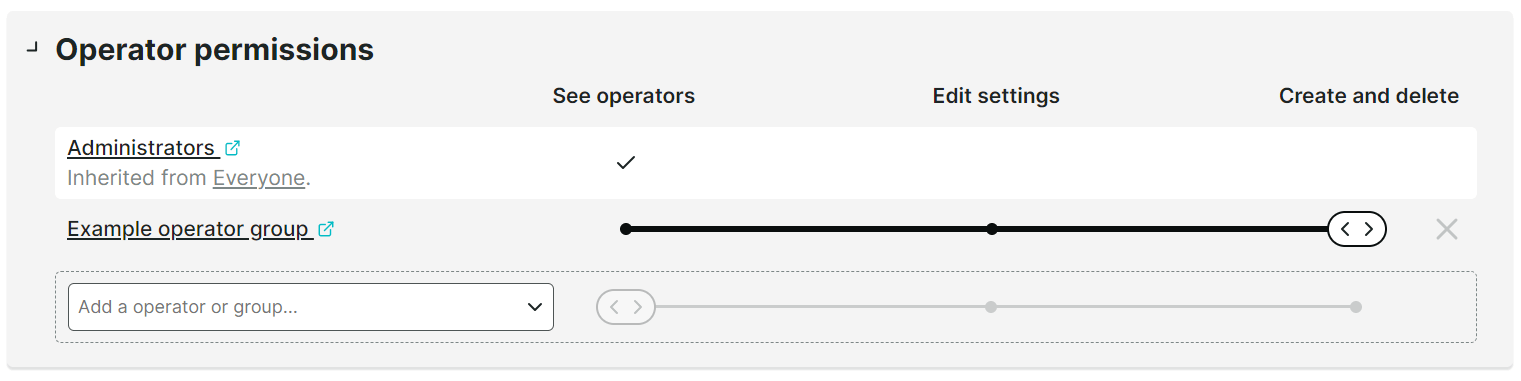
Until now you had to be an administrator within the Uptrends app to be able to create, edit, and apply monitor templates because using monitor templates can have a big impact. On the other hand, you may want to give some operators the permission to use monitor templates without giving them access to other administrator rights.

The solution is the newly added permission setting for monitor templates. This is a system-wide setting tied to operator groups or operators. Check out the instructions in the knowledge base article Permissions for granting or revoking permissions. Please note that only administrators have the right to change permissions.

UPDATE

APR 2024

#Manual input for 2FA

To enable two-factor authentication, you can scan the QR code using your preferred authenticator app. If scanning isn’t possible (for example, the preferred password manager does not support this feature), you can now switch to manual input by clicking the link below the code. A new panel will display the six-digit code and other data from the QR code, split into relevant parts.

UPDATE

APR 2024

#Introducing Filmstrips for Transactions

We are introducing timeline screenshots, also known as filmstrips, for transactions. This feature will be specifically tailored for transactions with extra metrics.

The filmstrip checkbox will replace the existing screenshot checkbox. Transactions with screenshot actions will remain unchanged, and the screenshot action(s) will remain in place. The option to enable a step-action for a single screenshot will still be accessible via Control action Screenshot. Please note, filmstrips will cost one transaction credit, unless there is already one screenshot in the step, in which case the filmstrip is free.

UPDATE

MAR 2024

#Clearer DNS bypass information in check details

In the latest update, we’ve improved clarity by explicitly displaying the bypass URL and resolved IP address in the check details when a DNS bypass is set up. Previously, Uptrends only showed the separately resolved IP address, which could cause confusion. Now, you can easily differentiate between these addresses for better understanding and troubleshooting.

When creating or editing a Full Page Check or Transaction monitor, you can choose to add a DNS bypass. The DNS bypass makes sure the webpage is resolved to the specified IP address, instead of the one used by default. This option is located within the Connection information on the Advanced tab of the monitor.

UPDATE

FEB 2024

#HTML formatting

It is now possible to enable HTML formatting for alerting emails. You can change the outgoing email format of alerting emails to HTML, which will show a basic formatted email and replace plain text links with text with a hyperlink.

To format outgoing alerting emails with HTML, go to the Alerting by email integration in the menu under Alerting > Integrations, select the Customize integration box, go to the Customizations tab, and select Use HTML mail.

Changing from plain text to HTML formatting in alert emails may cause issues with automated systems that use the plain text alerting emails. As a result, this option is not enabled by default for existing accounts, but it is enabled by default for new accounts.

By using the Uptrends website, you consent to the use of cookies in accordance with our Cookie Policy.