
Maintenance periods
Maintenance periods in Uptrends let you schedule planned downtime for your monitored systems. If your team performs routine maintenance on a regular basis, your systems may be temporarily unavailable or slower than usual. This can cause monitors to trigger alerts even though the downtime is expected.
By setting up maintenance periods for your monitors, you can configure the specific dates and times in advance, and decide whether to disable your alerts or the monitors temporarily to avoid receiving errors.
Maintenance periods configuration overview
The Maintenance periods configuration overview lists all maintenance periods in your account, allowing you to review, delete unwanted periods, and perform cleanups.
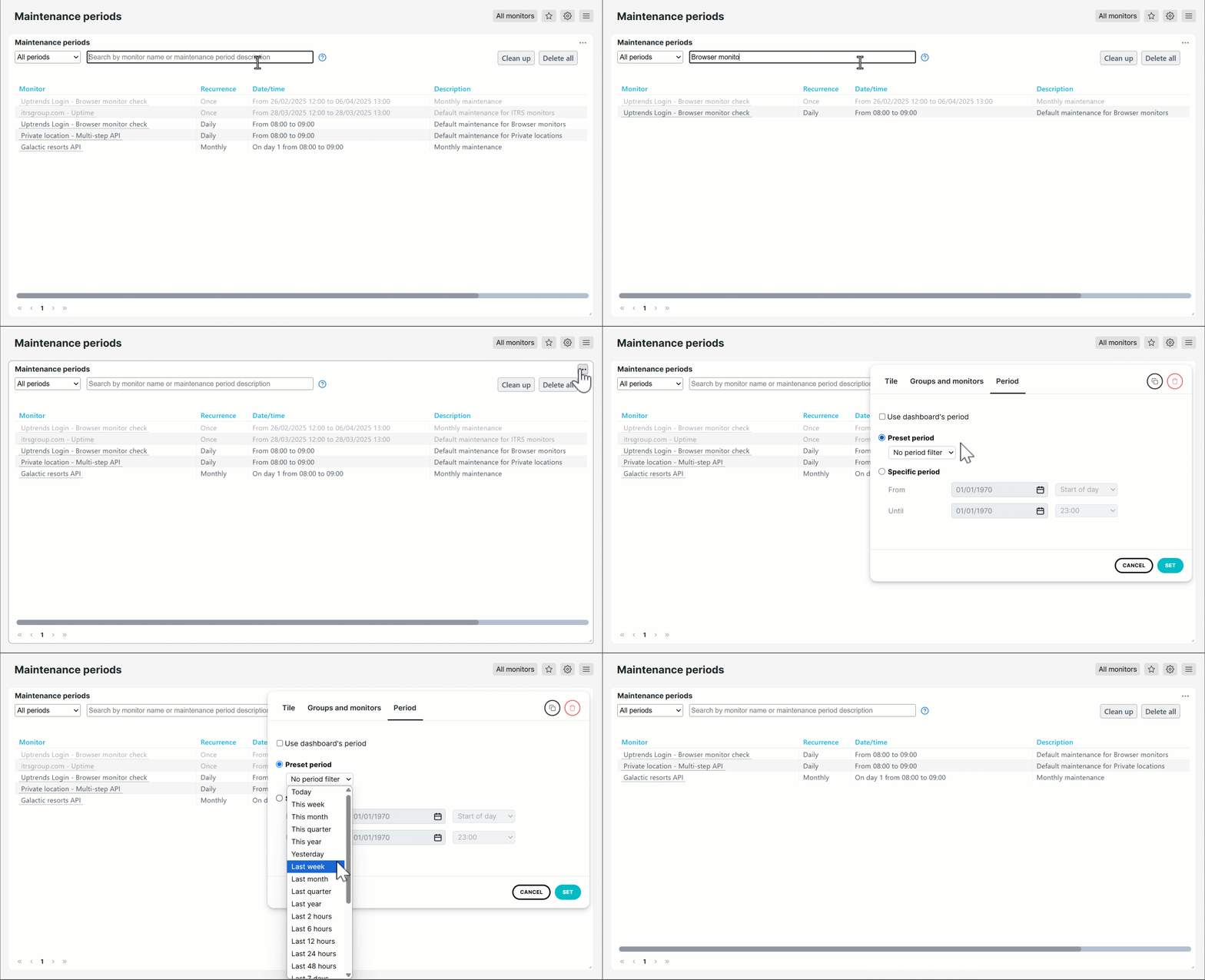
To view all scheduled maintenance periods, navigate using one of the following paths:
- Go to Account setup > Maintenance periods.
- Go to a monitor. In the Maintenance periods tab > click Select all similar periods.
Set up maintenance period
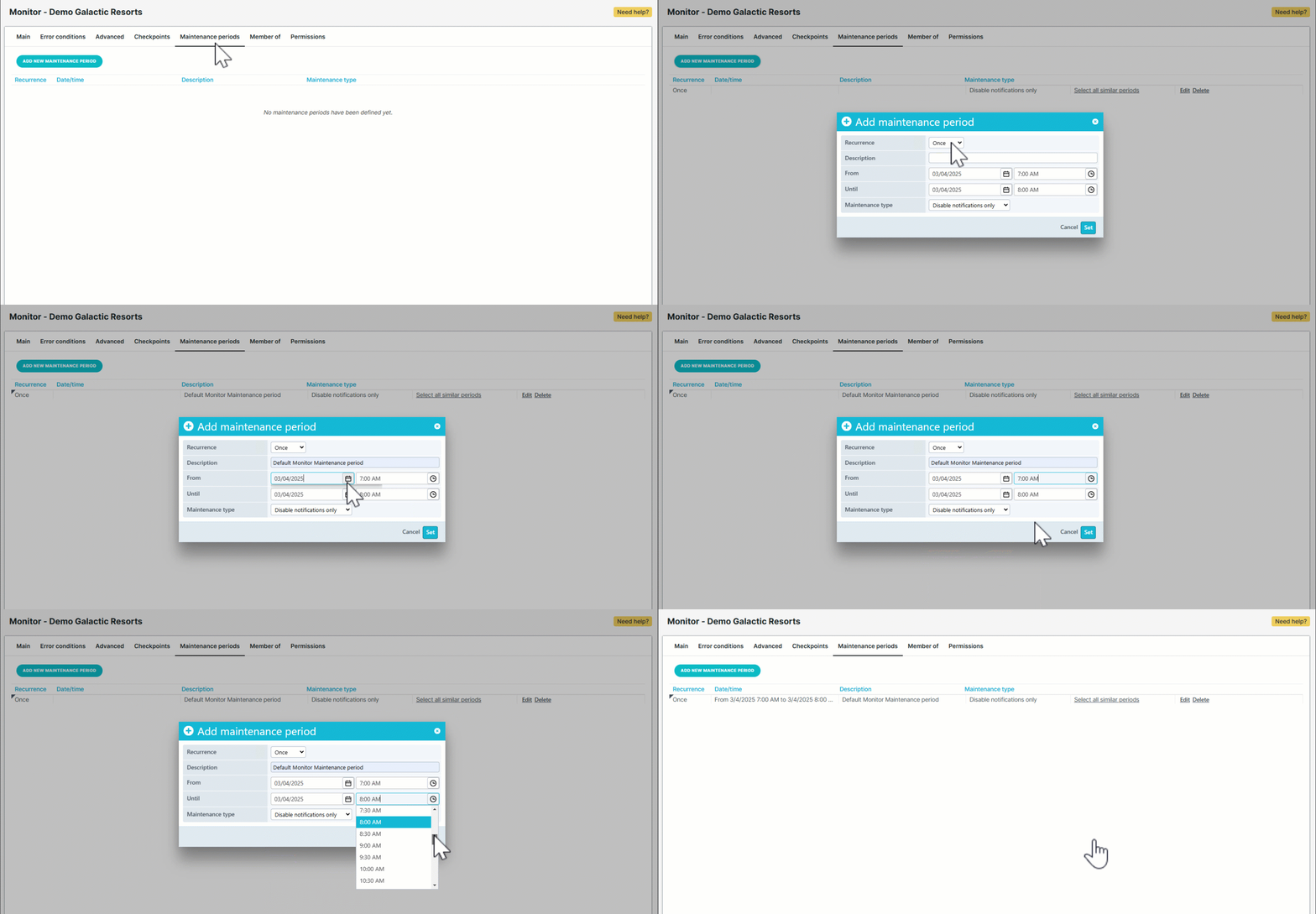
You create maintenance periods on a per-monitor basis. To set up your planned maintenance:
- Go to the monitor you want to add a maintenance period to.
- Click Maintenance periods.
- Click Add new maintenance period.
- Provide the recurrence period: once, daily, weekly, or monthly.
- Provide the maintenance description.
- Provide the date and time range.
- Provide the maintenance type:
- If you select Disable notifications only, monitoring continues and any errors that occur are still displayed in the event log, but no alerts are sent.
- If you select Disable monitoring entirely, no monitoring takes place, so no errors are logged and no alerts are generated.
- Click Set.
- Click Save to confirm your changes.
You can select specific days for your recurring schedules. For example, to set a maintenance period on the last day of each month, select monthly recurrence and choose day 31. This applies to the last day of every month, even in months with fewer than 31 days.
Manage maintenance periods
Filter maintenance periods
Filter maintenance periods by:
- Period type — use the dropdown menu to filter the list to one-time periods, recurring periods, or all maintenance periods.
- Monitor name or maintenance period description — use the search field to filter specific monitors or maintenance periods.
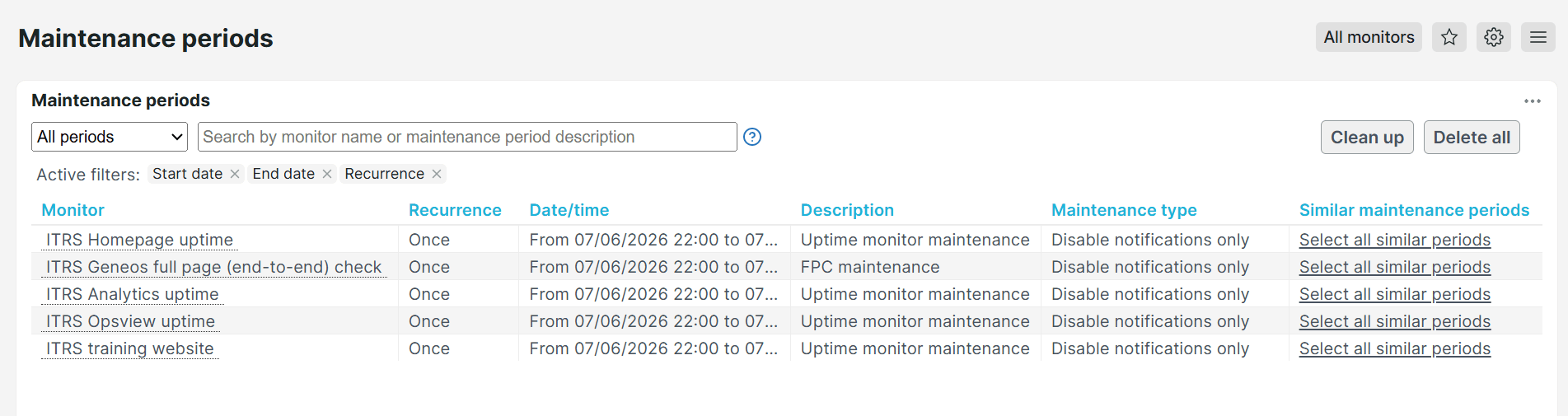
- Similar maintenance period attributes — click Select all similar periods to apply active filters based on the selected maintenance period’s attributes, such as start time, end time, start date, end date, and recurrence.
Use filters to narrow the list and perform bulk cleanup or deletion tasks more efficiently.
Clean up past maintenance periods
Over time, old maintenance periods can accumulate, making it harder to quickly view upcoming or active maintenance periods. Cleaning up past maintenance periods helps you identify relevant planned downtimes and keeps your account organized.
To clean up past maintenance periods:
- Go to the Maintenance periods page. You can filter the dashboard to select specific monitors or period types, such as one-time or recurring.
- Click Clean up. A message displays, showing the number of maintenance periods that will be deleted.
- Click OK to delete the selected maintenance periods.
The selected maintenance periods have been deleted.
Delete all maintenance periods
Deleting all maintenance periods removes both past and recurring scheduled maintenance, helping you start fresh with your maintenance planning. This reduces clutter and makes it easier to manage current and future planned downtimes.
To delete maintenance periods:
- Go to the Maintenance periods page. You can filter the dashboard to select specific monitors or period types, such as one-time or recurring.
- Click Delete all. A message displays, showing the number of maintenance periods that will be deleted.
- Click OK to delete the selected maintenance periods.
The selected maintenance periods have been deleted.
Apply maintenance periods to other monitors
To apply maintenance periods to other monitors in bulk, go to the Maintenance periods page and click Apply to monitors for the maintenance period you want to apply.
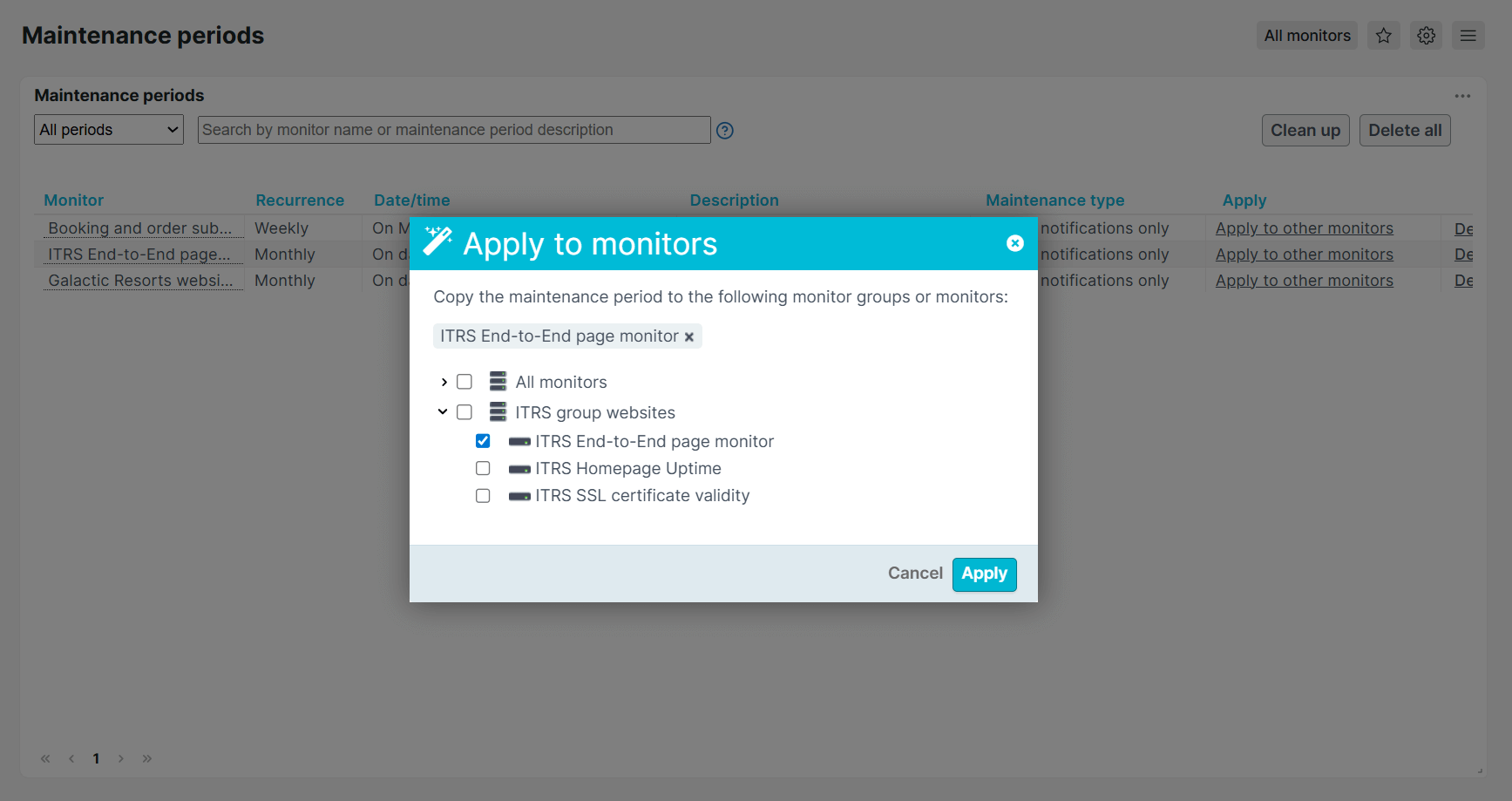
You can also use a monitor template pre-configured with a maintenance period and select which monitors to apply it to. For more details on how to use a monitor template, see Monitor templates.