
With bulk edit, you can change the monitor mode, monitoring, and alerting settings of many monitors in one go. For example, you can take a group of monitors out of production during a migration, or turn off alerting for a set of monitors while you work on them. Before you apply the changes, you can see how they affect your credits.
Bulk edit only changes monitors that you’re allowed to edit. You need the Edit monitor settings in group permission for those monitors, or be an administrator. Learn more in Monitor permissions.
Edit multiple monitors
- Go to Monitors.
- Click the Bulk edit button in the top-right corner. The Bulk edit monitors dialog opens.
- Under Changes, choose a new value for one or more settings. Keep Leave unchanged for the settings you don’t want to change. See Settings for details.
- Under Select monitor groups and monitors, select the check boxes of the monitor groups and monitors you want to change. Use the search box to find them by name. Selecting a monitor group selects all monitors in that group.
- If the Credit impact panel appears, check how the change affects your credits. See Credit impact.
- Click Apply changes.
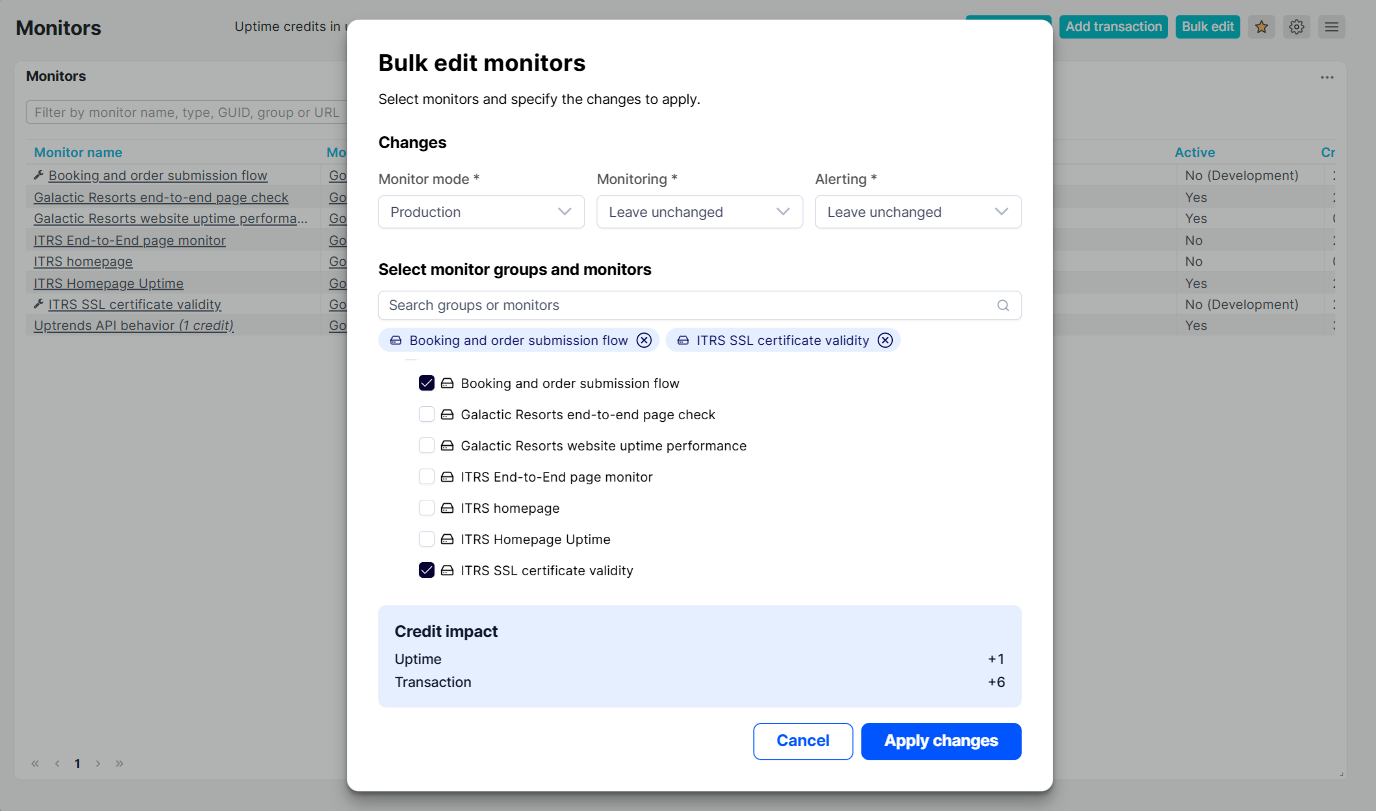
The Apply changes button is available only when you’ve changed at least one setting, selected at least one monitor or monitor group, and you have enough credits for the change.
Settings
Each setting starts at Leave unchanged, which keeps the current value of every selected monitor.
- Monitor mode — Moves the monitors to Development, Staging, or Production mode. For more information, see Monitor mode.
- Monitoring — Enabled runs checks for the monitors. Disabled stops the checks.
- Alerting — Enabled turns on alerting for the monitors. Disabled turns it off.
How monitor mode affects monitoring and alerting
When you choose a monitor mode, the Monitoring and Alerting settings follow the rules of that mode:
| Monitor mode | Monitoring | Alerting |
|---|---|---|
| Development | Set to Disabled and can’t be changed | Set to Disabled and can’t be changed |
| Staging | You can change it | Set to Disabled and can’t be changed |
| Production | You can change it | You can change it |
Warning
When you move monitors to development mode, their data history is removed. For more information, see Development mode.
Credit impact
Monitors in development mode don’t use credits. Monitors in staging and production mode use the same number of credits. This means that only some mode changes affect your credits:
- Moving monitors to development mode frees up credits.
- Moving monitors from development mode to staging or production mode uses credits.
- Switching monitors between staging and production mode doesn’t change your credits.
When the change affects your credits, the Credit impact panel shows how much the number of credits in use goes up or down, for example, +6 or -2. Depending on your subscription, you see a single row for Credits or Monitors, or a row for each credit type that changes: Uptime, Browser, Transaction, and API. Learn more about credit types in Credits overview.
If the change needs more credits than you have available, the row is highlighted and shows how many more you need, for example, 2 more needed. To continue, select fewer monitors or add credits to your subscription.
After you apply the changes
A message confirms how many monitors were updated. If some monitors couldn’t be updated, you also see a message for each of them with the monitor name and the reason. For example, you can’t change a monitor while Uptrends engineers are reviewing it. If more than five monitors fail, you see a single message with the number of monitors that weren’t updated.